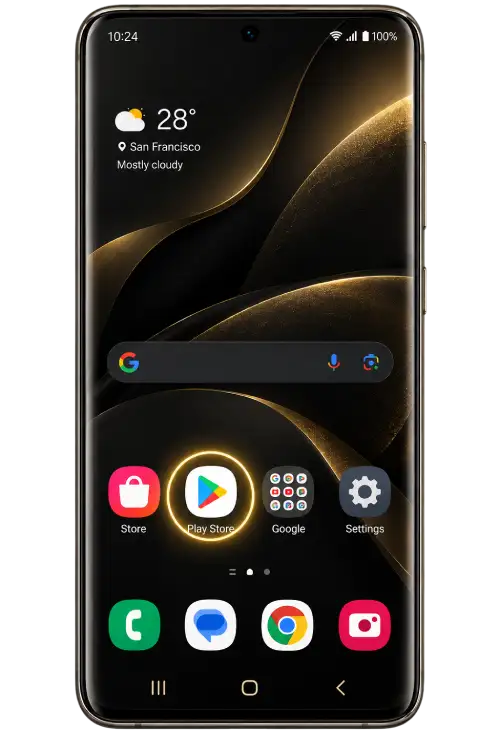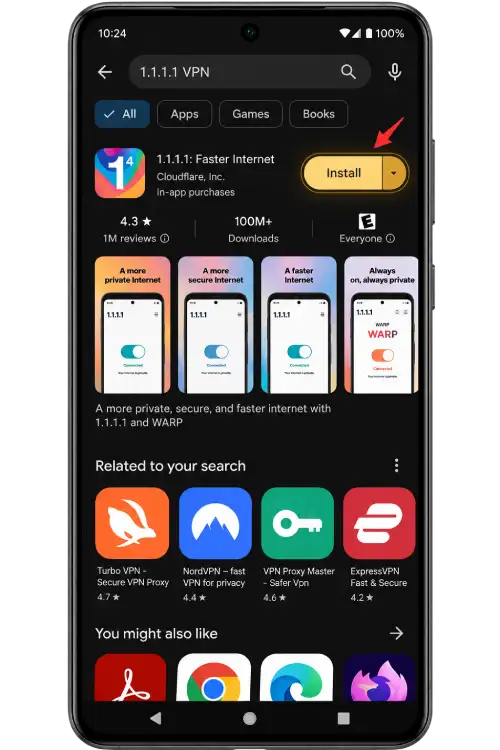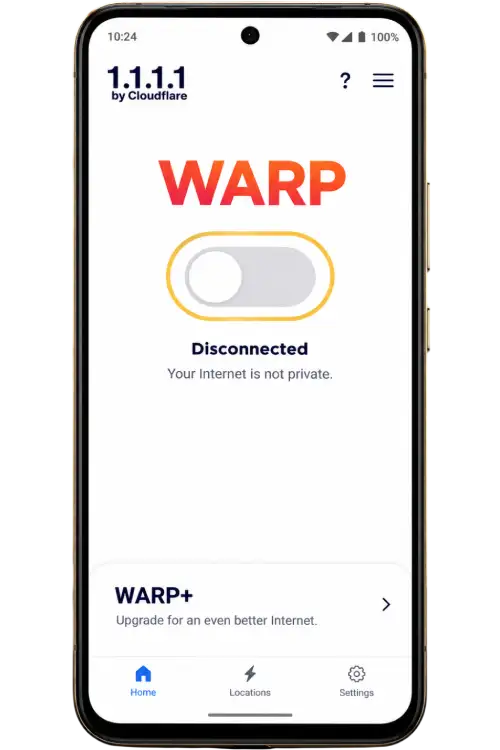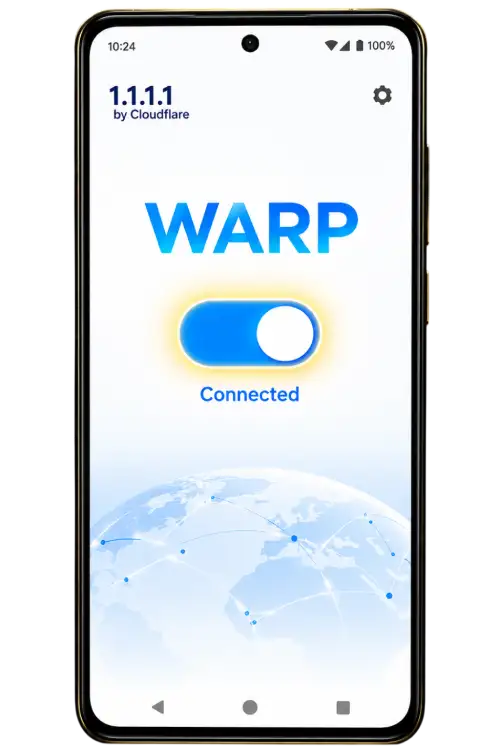
Choose your device
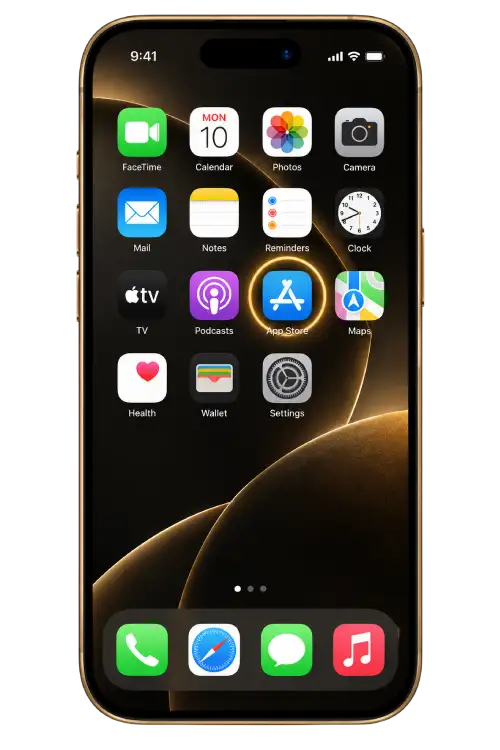
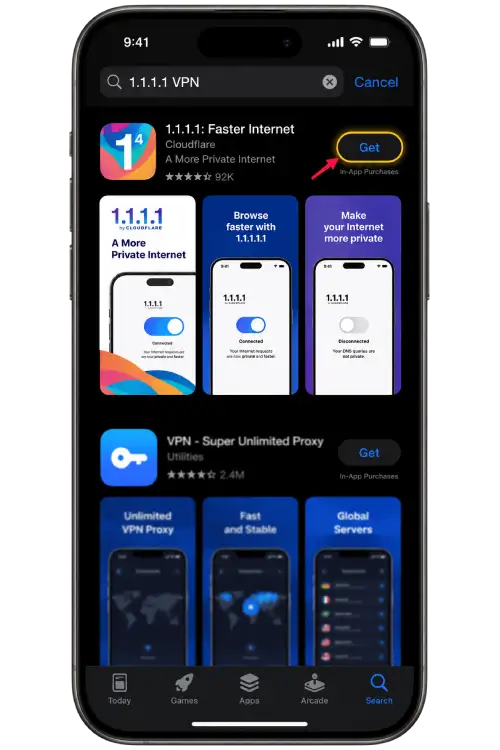
Use the iOS sequence on an iPhone or iPad and the Android sequence on an Android handset. Store screens and operating system prompts can vary between releases. Match the publisher and purpose of the prompt before tapping a control that looks similar to the screenshot.
Understand the connection prompt
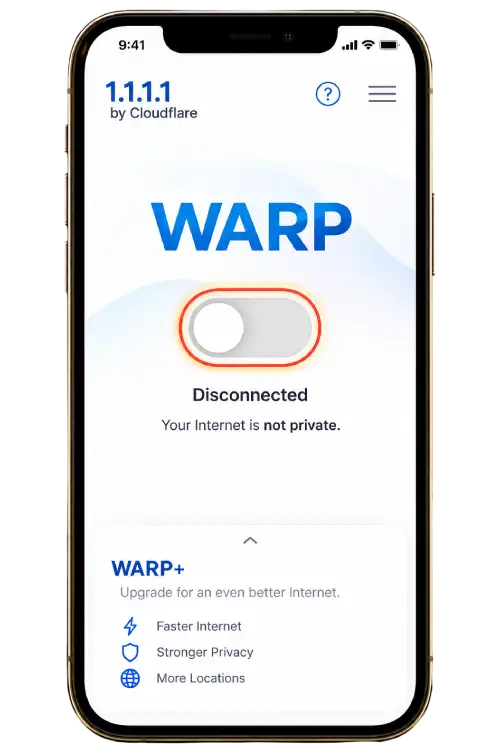
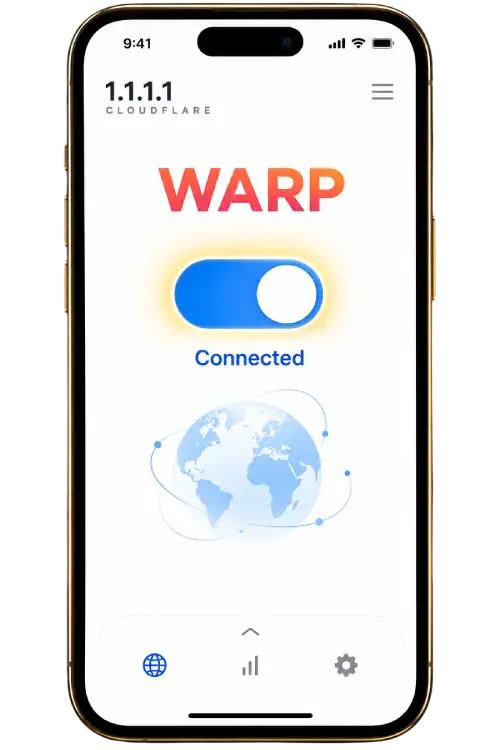
A device VPN profile changes how network traffic is routed. Read the permission prompt before approving it and follow the policy for a managed phone. The connection application shown below is a separate product. Opening it does not create a 91 club account or confirm account access.
Return to your browser
After reviewing the connection state, reopen the browser tab you were using. If a page still appears unavailable, check whether other pages load on the same connection. Record the browser message and the device type before changing more settings. Download explains how to review files already saved on the phone.
Compare the permission screens
A store installation prompt grants different permissions from the later request to add a VPN profile. Read each screen in sequence. If the device is managed by a school or employer, a control may be unavailable under its device policy. Ask the administrator about that restriction before changing a profile. Compare each picture with the permission currently shown on your device.